Guides › Convert
Excel to LaTeX: convert a table from a spreadsheet
You have a table in Excel and you need it in a LaTeX document. Typing it again takes long and adds mistakes. This guide shows how to convert it in a minute, with its merged cells, bold text and colours, and how to make the result look good in LaTeX.
Choose a way
| Way | Use it when | What comes with the cells |
|---|---|---|
| Copy and paste | You have the table open. This is the fastest way. | Merged cells, bold, italic and underlined text, text and background colours, alignment, borders |
| Import the .xlsx file | The table is large, or you do not have Excel on this computer. | All of the above, and the number formats and column widths of the sheet |
| Code (Python, R) | The numbers change and you make the table again and again. | What your code writes |
The first two ways use our LaTeX Tables Generator. It reads an imported file in your browser: the file does not go to our server.
Copy and paste from Excel
- In Excel, select the cells of the table. Press Ctrl+C (Cmd+C on a Mac).
- Open the LaTeX Tables Generator. Click the top left cell of the table and press Ctrl+V. The table grows to take all the cells.
- The LaTeX code is under the table. Choose the options (see Make the table ready) and click Copy to clipboard.
Excel puts the cells on the clipboard as a web page table, with their formatting. The editor
reads the merged cells, the font style, the colours, the alignment and the borders from it. Each
number comes as Excel shows it: if a cell shows 12.4%, the LaTeX cell is
12.4\%, not 0.12403....
The grid lines that Excel draws on all cells are not borders. Only the borders that you added in Excel come with the cells. If the table has none, add lines in the editor, or select Style: Booktabs, which needs only a top and a bottom border.
In our editor To paste only the text, without the formatting, use File › Paste table data and clear Paste with formatting.
Import an Excel file
- Open the LaTeX Tables Generator.
- Select File › Import CSV or Excel file and choose the
.xlsxfile. - If the workbook has more than one sheet, choose the sheet.
The editor takes the cells from the first to the last cell with text, so empty rows and columns
around the table are left out. Each cell comes with its merged cells, its formatting and its number
format, as Excel shows it. A column that has its own width in Excel gets that width in LaTeX (a
p{} column, whose text breaks into lines). To make it as wide as its text again,
double-click the right edge of its header.
Old .xls files and files with a password cannot be imported. Open them in Excel and
save them as Excel Workbook (.xlsx). A CSV file works too, but it has no formatting.
Google Sheets, LibreOffice, Numbers and Word
- Google Sheets. Copy and paste works as from Excel. To import the file, select File › Download › Microsoft Excel (.xlsx) in Google Sheets.
- LibreOffice Calc. Copy and paste, or save the sheet as
.xlsx(File › Save As, type Excel 2007-365) and import it. - Apple Numbers. Select File › Export To › Excel and import the
.xlsxfile. - Microsoft Word. Select the table in Word, copy it and paste it in the editor. Its merged cells and borders come with it.
Make the table ready for your document
A table that looks good in Excel is not always a good table in a document. Excel shows grid lines, colours and many digits, so that you can work with the data. A document table must be easy to read. This is the same quarterly report as a LaTeX table:
\begin{tabular}{lrrr}
\toprule
\textbf{Region} & \textbf{Q1} & \textbf{Q2} & \textbf{Change} \\
\midrule
North & 12,400 & 13,150 & 6.0\%  \\
South & 9,870  & 9,420  & -4.6\% \\
West  & 15,020 & 16,880 & 12.4\% \\
\midrule
Total & 37,290 & 39,450 & 5.8\%  \\
\bottomrule
\end{tabular}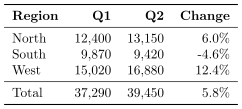
- Use the booktabs style. Select Style: Booktabs in the options. It draws three rules and no vertical lines, as journals do. The rule above the total row is a border under the West row.
- Remove the background colours that you used to work with the data in Excel. Keep a colour only if it means something to the reader. Select the cells and use Table › Clear formatting or the colour buttons of the toolbar.
- Round the numbers in Excel before you copy them. Three significant digits are enough for most readers. Use the same number of decimal places in a column.
- Align the numbers to the right and the text to the left.
- Add a caption and a label in the options, so that the text can refer to the table as Table 1. See Add a caption.
- Keep Escape special characters selected. Cells from a spreadsheet often have
%,&,$or_, which LaTeX uses for its code. The editor writes them as\%,\&and so on. - A wide sheet may not fit on the page. Give the columns with long text a width, or select Width: Wrap to text width. See Tables that do not fit.
- A long sheet of more than about 40 rows does not fit on one page. Select Long table: Split across pages.
Convert with code: Python and R
If you make the same table every week, or from the results of an analysis, write a few lines of code. Then the table changes when the data changes, and you do not copy anything by hand.
Python with pandas
import pandas as pd

df = pd.read_excel('sales.xlsx', sheet_name='Report')  # needs openpyxl
latex = df.to_latex(index=False, float_format='%.1f')  # needs jinja2
with open('sales-table.tex', 'w') as f:
    f.write(latex)
to_latex writes a tabular with booktabs rules, so load
\usepackage{booktabs}. In your document, write
\input{sales-table} in a table float, under the caption.
R with knitr
library(readxl)
df <- read_excel("sales.xlsx", sheet = "Report")
knitr::kable(df, format = "latex", booktabs = TRUE, digits = 1)
Code is best for plain tables of numbers. Merged header cells, colours and other formatting take much more code. For a table that you make once, the editor is faster.
There is also Excel2LaTeX, an add-in for the desktop version of Excel that converts the selected cells.
From LaTeX back to Excel
To move a LaTeX table to Excel, Google Sheets or Word:
- In the LaTeX Tables Generator, select File › From LaTeX
code, paste the code of the table and click Load. The editor reads
tabular,tabularxandlongtabletables, their merged cells, lines and colours. - Click a cell of the table and press Ctrl+A to select all cells. Press Ctrl+C.
- Paste the cells in Excel or Word. The merged cells, the text style, the colours and the borders come with them.
The editor removes LaTeX's escapes, so 12.4\% becomes 12.4%. To get a
file, select File › Download as CSV and open the file in the spreadsheet.
Problems and fixes
| Problem | Fix |
|---|---|
| Numbers have too many digits | The cells come as Excel shows them. Set the number format in Excel (for example, Home › Number › Decrease Decimal) and copy again. |
| Characters such as é or ü are wrong after a CSV import | Save the file as CSV UTF-8, or import the .xlsx file. |
| Empty rows or columns at the end | Right-click the row or column header and select Remove row(s) or Remove column(s). |
| The table has no lines | Excel's grid lines are not borders. Add borders in the editor, or use the booktabs style. |
A cell's text is LaTeX code, such as $x^2$, and it shows as typed |
Clear Escape special characters in the options. |
| The file cannot be imported | The editor reads .xlsx and CSV files. Save an .xls file or
a file with a password as a new .xlsx file. |
| The table is too wide for the page | See Tables that do not fit on the page. |