Guides › LaTeX
How to make a table in LaTeX
A table in LaTeX is text with a few marks in it: & between the cells and
\\ at the end of each row. This guide makes one table step by step, from the first rows
to a table that is ready for a paper or a thesis. Each step shows the code and the table that LaTeX
makes from it.
What you need
You need a LaTeX editor. Overleaf works in the browser and needs no installation. On your computer, install TeX Live (Windows, Linux, macOS) or MiKTeX (Windows) and an editor such as TeXstudio.
A LaTeX document has two parts. The preamble is everything before
\begin{document}: it sets the document class and loads the packages. The
body is between \begin{document} and \end{document}: it holds the
text and the tables.
\documentclass{article}
\usepackage{booktabs}   % packages go here, in the preamble

\begin{document}
Text and tables go here, in the body.
\end{document}
All the packages in this guide are part of TeX Live, MiKTeX and Overleaf. You do not need to
install them. You only write \usepackage{...} in the preamble.
Your first table
Start with the tabular environment. It puts its cells in rows and columns:
\begin{tabular}{lrr}
Planet  & Diameter (km) & Moons \\
Mercury & 4879          & 0     \\
Venus   & 12104         & 0     \\
Earth   & 12756         & 1     \\
Mars    & 6792          & 2     \\
\end{tabular}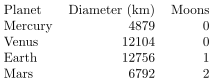
The code has three parts:
- The column letters.
{lrr}after\begin{tabular}makes three columns.laligns a column to the left,ccentres it andraligns it to the right. Write one letter for each column. - The cells. Write the cells of a row from left to right, with
&between them. A row of three cells has two&signs. - The row ends. Write
\\at the end of each row.
Align numbers to the right, so that the units, tens and hundreds are one under the other. Give the numbers of a column the same number of decimal places for the same reason. To align them at the decimal point, see Align numbers in the cheat sheet.
LaTeX ignores the spaces around the cells. The spaces in the example only line up the
& signs, so that the code is easy to read and to change.
Add lines
The first table has no lines. To add them, write | between the column letters and
\hline between the rows:
\begin{tabular}{|l|r|r|}
\hline
Planet  & Diameter (km) & Moons \\
\hline
Mercury & 4879          & 0     \\
Venus   & 12104         & 0     \\
Earth   & 12756         & 1     \\
Mars    & 6792          & 2     \\
\hline
\end{tabular}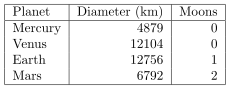
{|l|r|r|}draws a vertical line before, between and after the three columns.\hlinedraws a horizontal line across the table. Write it before the first row and after the\\of a row.- To draw a line under some columns only, write
\cline{2-3}(columns 2 to 3) in place of\hline.
Do not add a line between all rows and all columns only because you can. Lines make a table heavy to read. The table above needs only the line under the header. The next steps show how books and journals do it.
In our editor Click the all-borders button on the toolbar, or use the border editing button and click the edges of the cells where you want lines.
Add a caption and refer to the table
A tabular is like a big letter in the text: LaTeX puts it where the code is. To give
the table a number and a caption, put the tabular in a table
environment:
\documentclass{article}
\usepackage{caption} % space under a caption above a table

\begin{document}

Mars has two moons (see Table~\ref{tab:planets}).

\begin{table}[htbp]
  \centering
  \caption{The inner planets}
  \label{tab:planets}
  \begin{tabular}{|l|r|r|}
    \hline
    Planet  & Diameter (km) & Moons \\
    \hline
    Mercury & 4879          & 0     \\
    Venus   & 12104         & 0     \\
    Earth   & 12756         & 1     \\
    Mars    & 6792          & 2     \\
    \hline
  \end{tabular}
\end{table}

\end{document}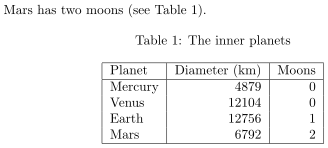
The table environment is a float. LaTeX can move it to the top of this
page or to the next page, so that the table does not break the page in a bad place. This is why
the text refers to the table by its number, not as "the table below".
[htbp]lets LaTeX put the table here, at the top or bottom of a page, or on a page of floats. See Caption and placement for all the letters.\centeringcentres the table on the page. Do not use thecenterenvironment in a float: it adds space above and below the table.\captiongives the table its number and its caption. For tables, put it above thetabular. Most style guides say so: readers read a table from the top.\label{tab:planets}goes after\caption.\ref{tab:planets}prints the table's number. If you put the label before the caption,\refprints the number of the section, not of the table.- Compile the document two times. In the first run, LaTeX collects the numbers. Until the second
run,
\refprints??.
The caption package adds space between a caption and the table under it. Without
it, the caption touches the table's top line.
In our editor In the options under the code, select Caption: Above and type the caption and the label. Select Complete document to get a document that compiles as it is.
Make it look professional
Look at a table in a good book or journal. It has no vertical lines and only three horizontal
rules: a thick rule at the top, a thin rule under the header and a thick rule at the bottom. The
booktabs package draws these rules:
\begin{tabular}{lrr}
\toprule
Planet  & Diameter (km) & Moons \\
\midrule
Mercury & 4879          & 0     \\
Venus   & 12104         & 0     \\
Earth   & 12756         & 1     \\
Mars    & 6792          & 2     \\
\bottomrule
\end{tabular}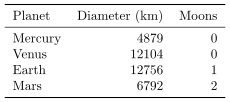
- Load the package in the preamble:
\usepackage{booktabs}. \toprulegoes above the header,\midruleunder it and\bottomruleafter the last row.- The rules have space above and below them, so the text does not touch them.
- Do not use
|with booktabs: the space around the rules makes gaps in vertical lines. Use space between the columns to separate them.
Many universities and journals ask for this style. If you are not sure, use it: it is easy to read and it looks the same in all documents.
In our editor In the options under the code, select Style: Booktabs. The top
border of the table becomes \toprule, the bottom border \bottomrule and
the others \midrule.
Merge cells
A header cell over two or more columns groups them. Here, Size is over the diameter and the mass. Planet and Moons fill both header rows:
\begin{tabular}{lrrr}
\toprule
\multirow{2}{*}{Planet} & \multicolumn{2}{c}{Size} & \multirow{2}{*}{Moons} \\
\cmidrule(lr){2-3}
        & Diameter (km) & Mass ($10^{24}$ kg) & \\
\midrule
Mercury & 4879          & 0.330 & 0 \\
Venus   & 12104         & 4.87  & 0 \\
Earth   & 12756         & 5.97  & 1 \\
Mars    & 6792          & 0.642 & 2 \\
\bottomrule
\end{tabular}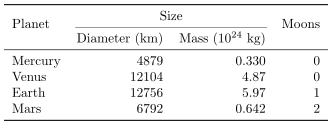
\multicolumn{2}{c}{Size}makes one cell across two columns, centred (c). It takes the place of the two cells, so its row has one&less.\multirow{2}{*}{Planet}makes one cell across two rows. It needs\usepackage{multirow}. In the row under it, the cell stays in the code, empty: the second header row starts with&.\cmidrule(lr){2-3}draws a booktabs rule under columns 2 to 3.(lr)makes it a little shorter at both ends, so that it does not touch the next rule.$10^{24}$is math in a cell: the power of ten.
The cheat sheet shows more merged cells: rows in a table with lines, and a block of cells across rows and columns.
In our editor Drag the mouse over the cells and click the merge button on the toolbar. The
editor writes \multicolumn and \multirow and counts the
& signs for you.
Long text in a cell
An l, c or r column is as wide as its longest text. It never
breaks the text into lines. A cell with a sentence in it makes the table wider than the page, and
LaTeX writes an Overfull \hbox warning. Give such a column a width:
\begin{tabularx}{\textwidth}{lX}
\toprule
Planet  & Surface \\
\midrule
Mercury & Grey rock with many craters. It has almost no air, so its
          temperature changes much between day and night. \\
Venus   & Hot rock under thick carbon dioxide air and clouds of sulfuric acid. \\
Mars    & Red dust and rock, with the highest volcano of the solar system. \\
\bottomrule
\end{tabularx}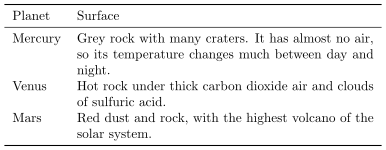
tabularx(\usepackage{tabularx}) makes a table of the width that you give it.\textwidthis the width of the text on the page.- An
Xcolumn takes the width that the other columns leave, and breaks its text into lines. - To give a column a fixed width in an ordinary
tabular, writep{5cm}in place of its letter. - LaTeX justifies the lines of
Xandpcolumns, like the text of a page. In a narrow column, this makes wide spaces. Write>{\raggedright\arraybackslash}Xto align the lines to the left (needs thearraypackage, which tabularx loads).
See Fixed column width and As wide as the text for both, side by side.
In our editor Drag the right edge of a column's header to give it a width. In the options,
select Width: Wrap to text width to make a tabularx.
Tables that do not fit on the page
A table float is one block: it must fit on one page. A table that is too large has
three fixes.
Too long: let it continue on the next page
The longtable package makes a table that continues on the next pages and repeats the
header on each page. A longtable is not put in a table float: it has its
own caption. See Long tables.
Too wide: make it narrower
Try these first, in this order: give long text a column width (above), make the headers shorter,
put the units in the header and not in each cell, and use a smaller font (\small after
\centering).
Still too wide: turn the page
Put the table on a landscape page with the pdflscape package. See
Wide tables. You can also scale the table with
\resizebox, but this makes its text smaller than the text of the page. Most style
guides do not allow it.
Tables in Overleaf
Overleaf compiles the same LaTeX as your computer. Everything in this guide works in it.
- Open your project. The main file is usually
main.tex. - Add the
\usepackagelines that the table needs to the preamble, before\begin{document}. If the project has a template, look for the lines that load the other packages. - Paste the table's code in the body, where you want the table.
- Click Recompile. If the table has a
\ref, its number shows after the second compile, which Overleaf does for you.
For a document with many tables, put each table in its own file, for example
tables/planets.tex, and write \input{tables/planets} where the table goes.
The main file stays short, and you can change a table without scrolling through the text.
The Visual Editor of Overleaf can insert a simple table, but the code is the same
tabular as above. When something goes wrong, Overleaf shows the error in the
Logs and output files panel. The next section explains the errors that tables
cause most often.
Errors and how to fix them
LaTeX names the line where it found the error. With tables, the cause is often a row or two before it.
| Error | Cause and fix |
|---|---|
| Extra alignment tab has been changed to \cr | A row has more cells than the column letters. Count the & signs: a
table of 3 columns has 2 in each row. A \multicolumn{2} counts as two
cells. |
| Misplaced alignment tab character & | An & outside a table, often in a caption or in the text. Write
\&. |
| Undefined control sequence | A command of a package that is not loaded, such as \toprule or
\multirow. Add the \usepackage line to the preamble. |
| Missing $ inserted | A _ or ^ in text, often in a name such as
file_name. Write \_, or put math between $
signs. |
| Misplaced \noalign | A \hline or \midrule that does not follow a \\.
Look for a missing \\ at the end of the row before it. |
| Paragraph ended before \multirow was complete (or another command) | A missing } or an empty line in a cell. Check the braces of the
command. |
| Overfull \hbox (warning) | The table is wider than the text. See Long text in a cell and Tables that do not fit. |
| Table 1 shows as Table ?? | Compile again. If the number is wrong, put \label after
\caption. |
| The table is at the end of the chapter | LaTeX found no place for it. Use [htbp], not [h] alone, and
check that the table fits on a page. |
| A % or # in a cell is lost, or causes an error | LaTeX uses % # $ & _ { } ~ ^ \ for its code. Write
\%, \#, \$ and so on. See
Characters to escape. |
Make the table without writing the code
Our LaTeX Tables Generator writes all of the code above for you. You make the table as in a spreadsheet, and the code under it changes as you type.
- Type the cells, or paste a table from Excel, Google Sheets or a web page.
- Merge cells, align the text and add lines with the toolbar.
- In the options under the code, select the style (booktabs or lines), the caption, the placement and the width.
- Click Copy to clipboard and paste the code in your document. A comment at the top of the code names the packages to load.
To change a table that you already have, paste its code in File › From LaTeX code. To move a table from a spreadsheet, see Excel to LaTeX.